Help Opening Kettle
How to open it
Kettle is a small independent app, so your computer may ask you to confirm it the first time. That's normal. It takes about five minutes from here.
Start with Read me first: the security warning, giving permission, and starting Kettle, with pictures.
§ 1 Mac
On a Mac
The first time, your Mac will warn that it can't check Kettle. That's expected: Kettle is a small independent app that isn't signed with a paid Apple certificate yet. Here's every click.
Open the download
Double-click the .zip in your Downloads folder. Nothing starts by itself yet: it just turns into a folder (Safari may have done this for you already). Open that folder.
Double-click Kettle Setup
Your Mac will show this box. Click Done (not Move to Trash).
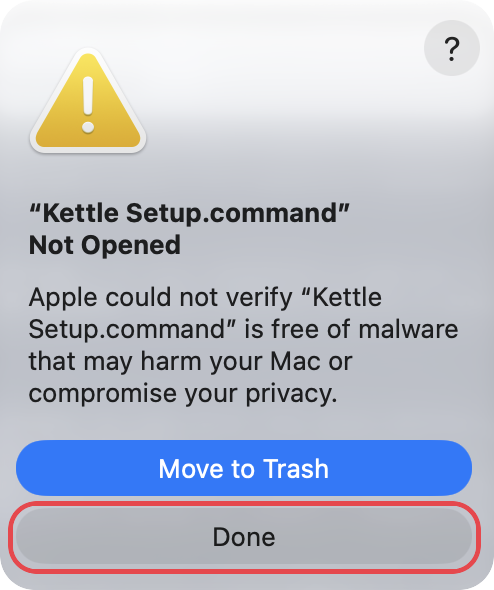
Click Done. - Important · give permission
Allow Kettle in System Settings
Your Mac won't open Kettle until you allow it. Click the Apple menu (top left) → System Settings → Privacy & Security. Scroll right down to Security and click Open Anyway. Type your Mac password or use Touch ID if asked.
Open Privacy & Security for me
If your browser asks to open System Settings, click Allow. Then scroll right down to Security.
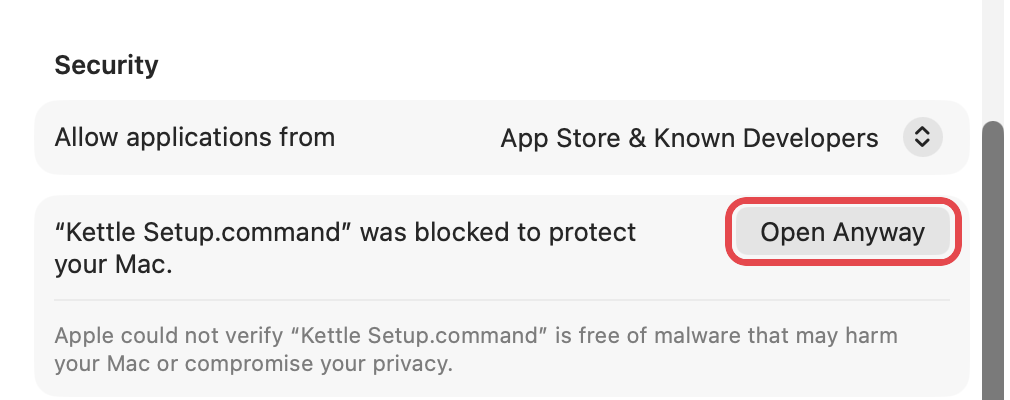
The Open Anyway button is next to the Kettle line. - Important · start it
Double-click Kettle Setup again
Go back to the Kettle folder and double-click Kettle Setup again. This time the box has an Open Anyway button: click it (and your Mac password or Touch ID if asked). Kettle starts. If Kettle already started by itself after step 3, skip this.
Follow Kettle's screens
Kettle's own windows take you from here and say what each step will do before it does it. A Terminal window also opens behind them to show progress: just leave it open. You only need to give permission the first time.
On macOS 13 or 14, steps 2 to 4 are simpler: right-click (or Control-click) Kettle Setup → Open → Open.
§ 2 Windows
On Windows
Extract the zip first
In your Downloads folder, right-click the Kettle .zip and choose Extract All… Kettle won't run from inside the zip.
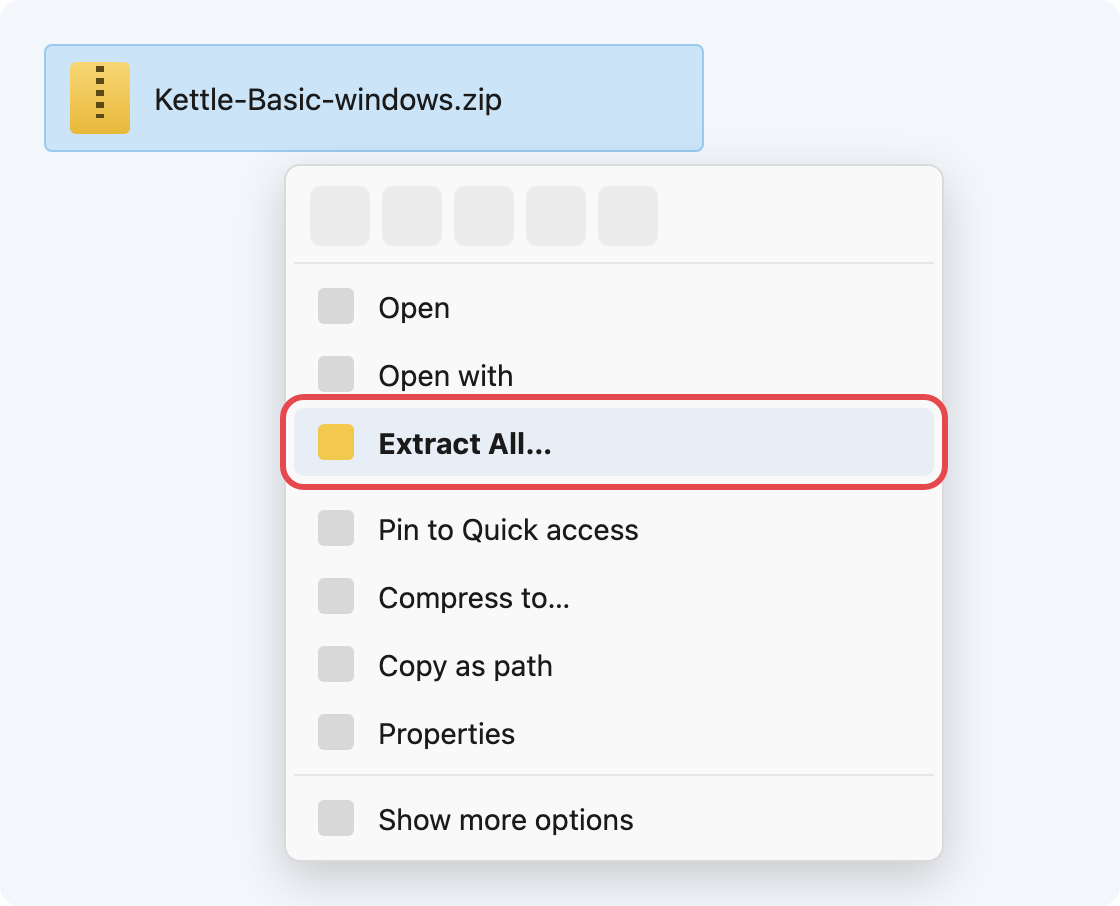
Right-click the zip, then click Extract All… Click Extract
Leave the folder as it is and click Extract. The new folder opens by itself.
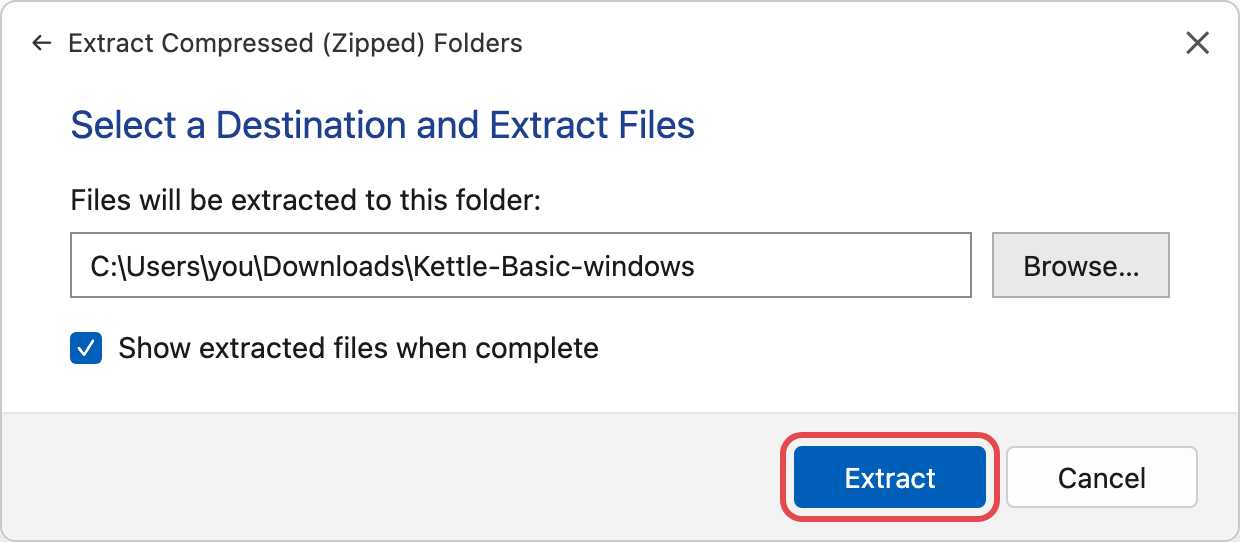
Click Extract. Double-click Setup
In the new folder, double-click the Setup whose type is Windows Command Script (the one with the cog). Not the "setup" PowerShell file: that one only opens as text.
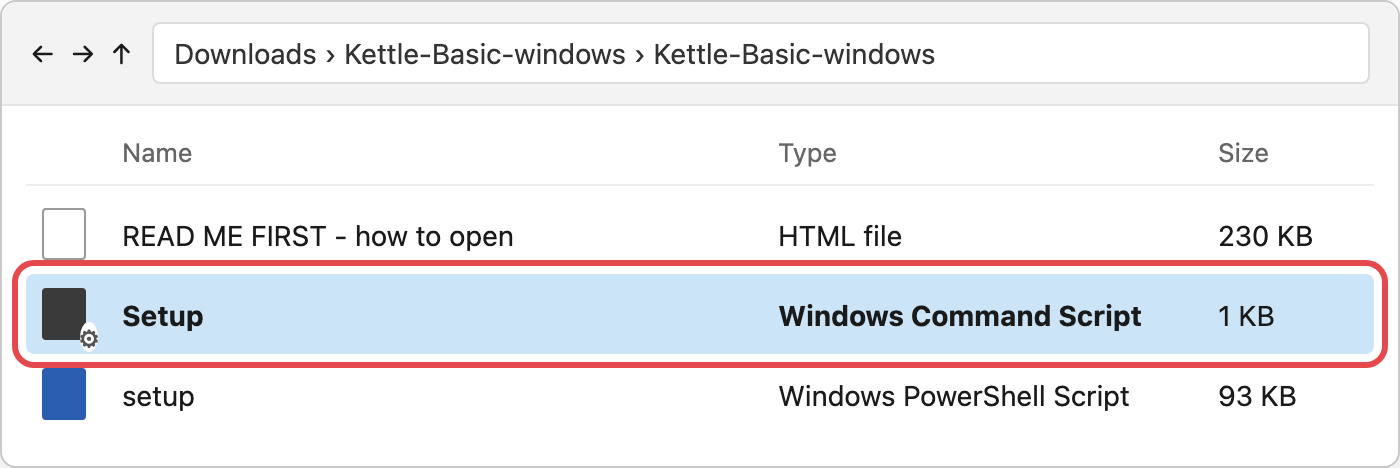
Double-click the Setup that says Windows Command Script. Can't see the Type column? Click View → Details at the top of the window.
- Important · get past the warning
Click "More info"
If a blue Windows protected your PC box appears, that's the expected warning. Click the small More info link. (Don't click Don't run.)
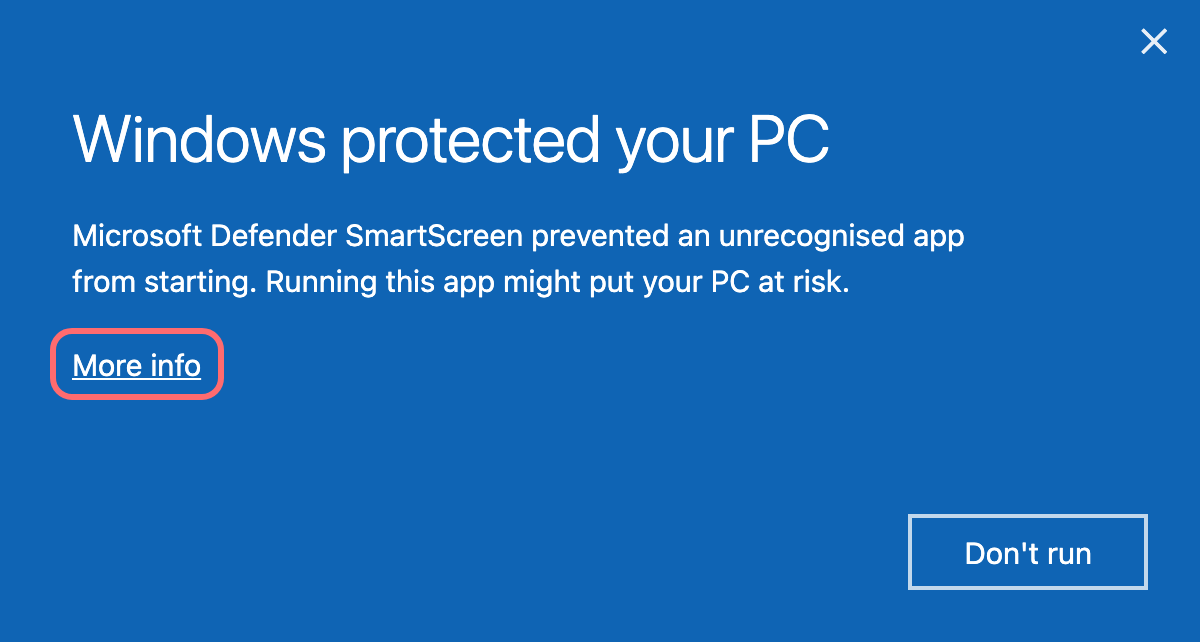
Click More info. - Important · start it
Click "Run anyway"
The box now shows Publisher: Unknown publisher and a Run anyway button. Click it. Kettle starts.
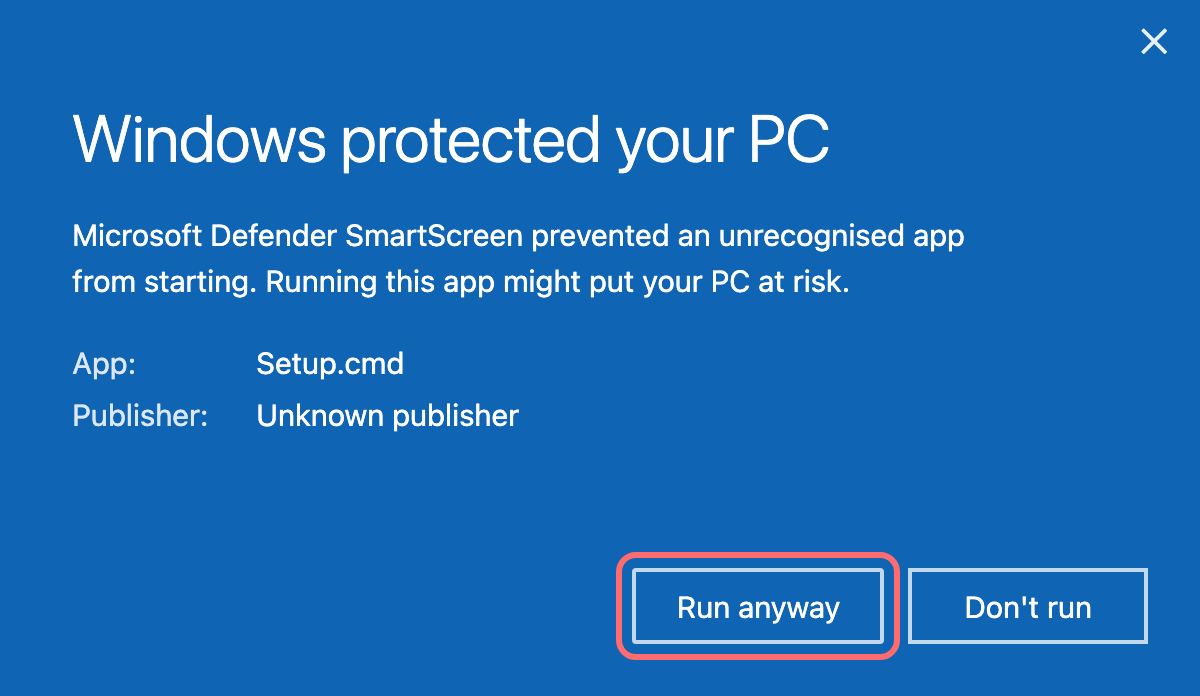
Click Run anyway. If another box asks "Do you want to run this file?", click Run.
Follow Kettle's screens
Kettle's own windows take you from here and say what each step will do before it does it. A black PowerShell window shows progress: leave it open until Kettle says it's done.
The Windows pictures are recreated for this guide, so yours may look slightly different, but the button names are the same.
§ 3 After setup
Using it day to day
Where things are
- Mac: the blue icon in the menu bar has Claude chat, Claude Code, (Plus and Complete) Claude Code with Fable, Change access level… and Manage or cancel your Claude plan.
- Windows: the same choices are on your Desktop and in Start → Kettle.
- Claude Code works in a folder called Claude Workspace in your home folder. Put files there for Claude to work on.
The first time Claude Code opens
- Pick a colour theme (any is fine).
- Choose to sign in with your Claude account. Your browser opens; sign in and allow access.
- Claude asks whether you trust the Claude Workspace folder. Choose Yes.
After that, just type what you want in plain English, for example "Make a tidy list of the files in this folder".
Can't see the icon?
- Mac: on MacBooks with a notch, menu bar icons can hide behind it when the bar is full. Close an app or two, or open Claude Code Workspace from Applications in your home folder; you can drag it to the Dock.
- Windows: right-click the Claude Code Desktop shortcut → Show more options → Pin to taskbar.
Change the access level
Mac: blue icon → Change access level…. Windows: Start → Kettle → Change access level. You can switch between Limited and Full at any time.
Cancel your Claude plan
Your Claude plan is with Anthropic, not Kettle. Sign in to Claude → Settings → Billing → Cancel, or use Manage or cancel your Claude plan in the blue icon. There's nothing to cancel with Kettle.
Uninstall
Open Change access level → Uninstall Kettle (on Windows, you can also use Settings → Apps). Kettle removes its own changes and keeps anything you changed yourself. Your Claude Workspace folder and Claude sign-in are kept. You choose whether to keep Claude Code itself.
§ 4 If something goes wrong
If something goes wrong
- A step failed. Kettle puts your settings back as they were. Run it again and choose Repair.
- "Your Claude Code settings file couldn't be read." The file has a mistake in it, so Kettle left it alone. Fix or rename
.claude/settings.jsonin your home folder, then run Kettle again. - Claude won't open a file. In Limited mode Claude only works inside Claude Workspace, and it never opens files that look like bank statements, payslips or passports. That's on purpose.
- Sign-in says Claude Code isn't on your plan. Claude Code needs a paid plan (Pro or above). The free plan doesn't include it.
- Still stuck? Kettle keeps a log:
~/.kettle/setup.logon a Mac,%LOCALAPPDATA%\Kettle\setup.logon Windows.