Read me first Opening Kettle
How to open Kettle the first time
This is the same guide that comes inside your download, as "READ ME FIRST". It takes about one minute, and you only do it once.
That's expected. Kettle is made by a small independent seller and isn't signed with a paid Apple or Microsoft certificate yet, so your computer can't check who made it. Nothing is wrong with the download.
In short (Mac): click Done → give permission in System Settings → Privacy & Security → Open Anyway → double-click Kettle Setup again.
In short (Windows): right-click the zip → Extract All → double-click Setup → More info → Run anyway.
§ 1 Mac
On a Mac
Open the download
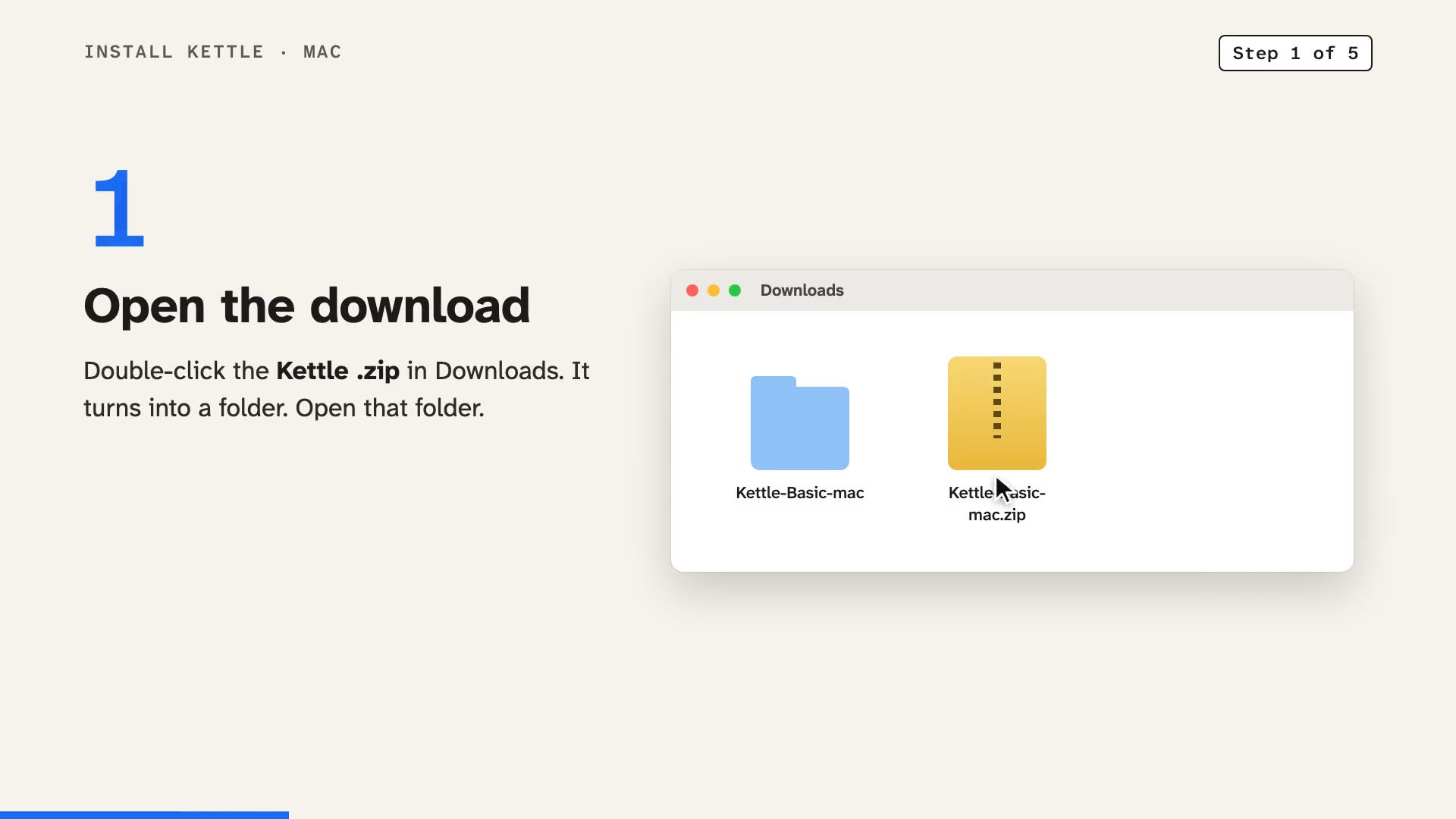
Double-click the Kettle .zip in your Downloads folder. Nothing starts by itself yet: it just turns into a folder (Safari may have done this for you already). Open that folder.
Double-click Kettle Setup
Your Mac will show this box. Click Done (not Move to Trash).
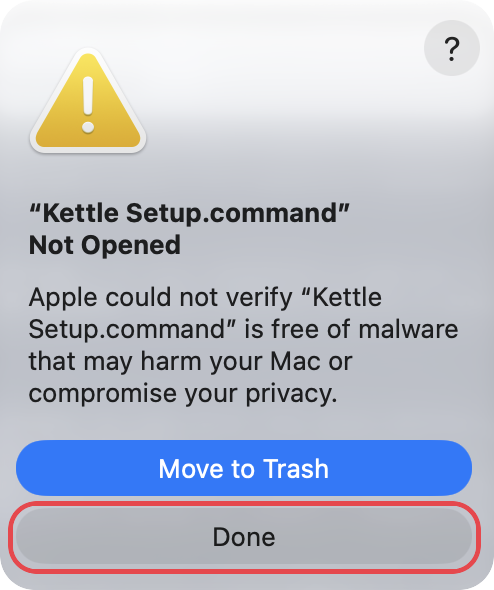
Click Done. - Important · give permission
Allow Kettle in System Settings
Your Mac won't open Kettle until you allow it. Click the Apple menu (top left) → System Settings → Privacy & Security. Scroll right down to Security and click Open Anyway. Type your Mac password or use Touch ID if asked.
Open Privacy & Security for me
If your browser asks to open System Settings, click Allow. Then scroll right down to Security.
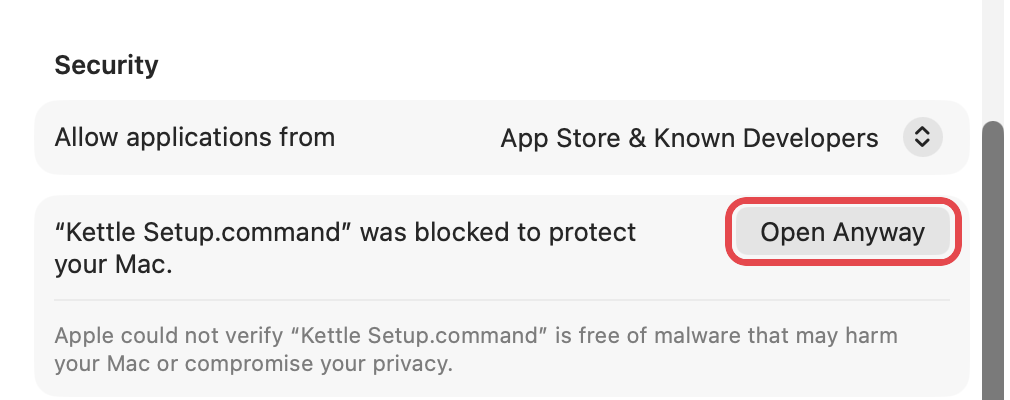
The Open Anyway button is next to the Kettle line. - Important · start it
Double-click Kettle Setup again
Go back to the Kettle folder and double-click Kettle Setup again. This time the box has an Open Anyway button: click it (and your Mac password or Touch ID if asked). Kettle starts. If Kettle already started by itself after step 3, skip this.
Follow Kettle's screens
Kettle's own windows take you from here and say what each step will do before it does it. A Terminal window also opens behind them to show progress: just leave it open. You only need to give permission the first time.
On macOS 13 or 14, steps 2 to 4 are simpler: right-click (or Control-click) Kettle Setup → Open → Open.
§ 2 Windows
On Windows
Extract the zip first
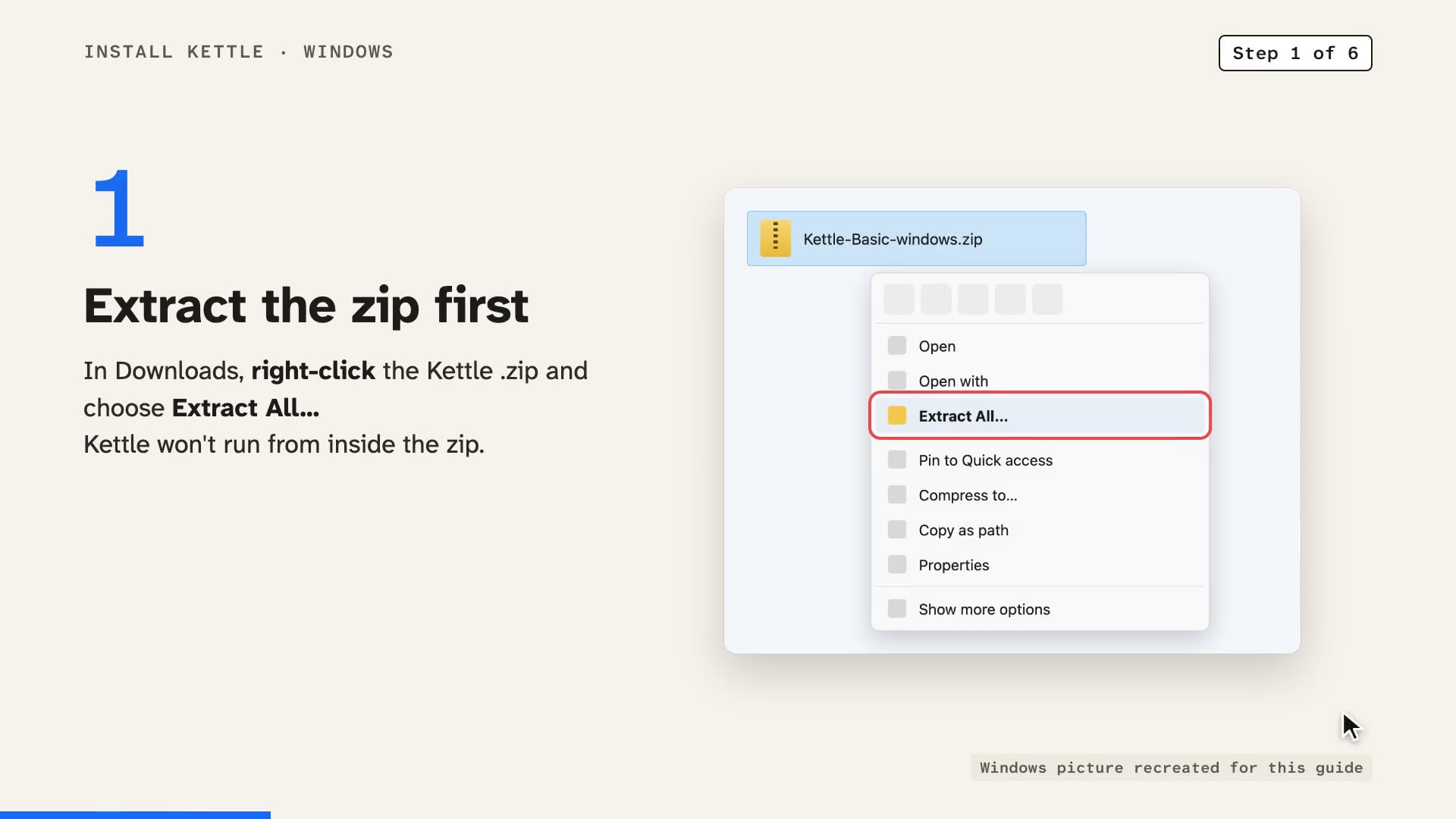
In your Downloads folder, right-click the Kettle .zip and choose Extract All… Kettle won't run from inside the zip.
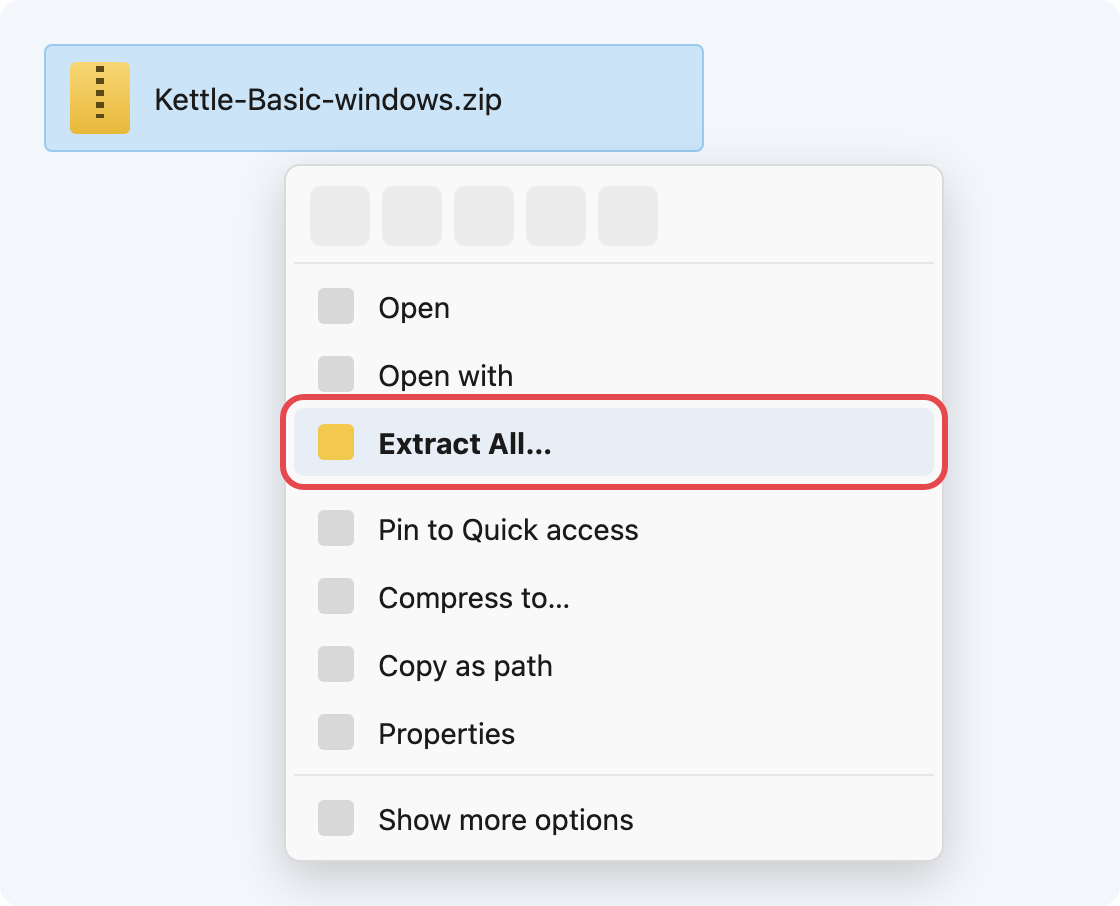
Right-click the zip, then click Extract All… Click Extract
Leave the folder as it is and click Extract. The new folder opens by itself.
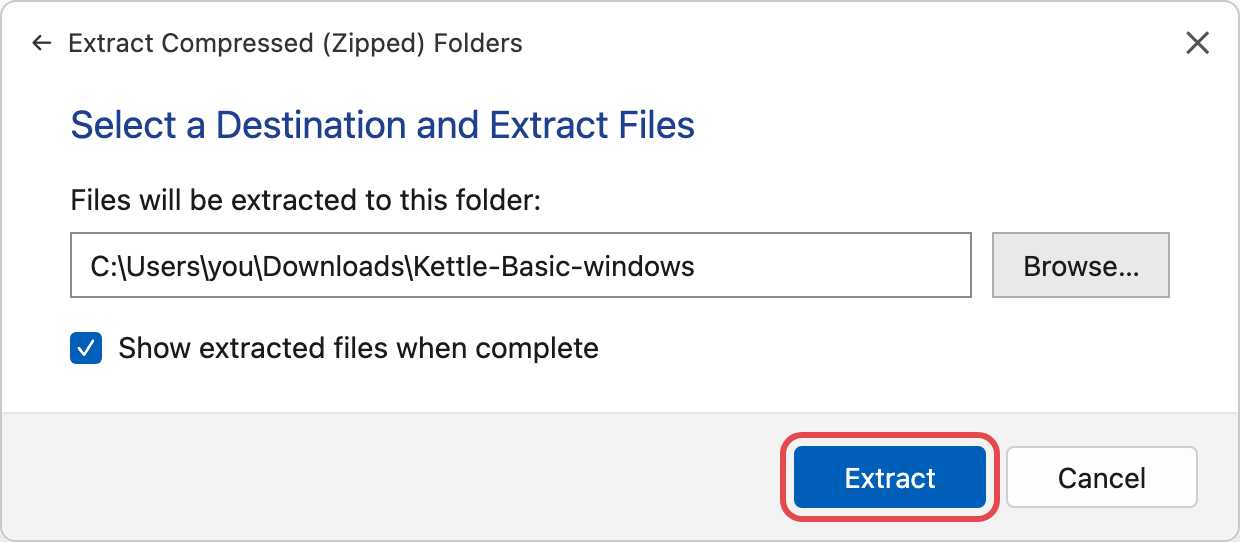
Click Extract. Double-click Setup
In the new folder, double-click the Setup whose type is Windows Command Script (the one with the cog). Not the "setup" PowerShell file: that one only opens as text.
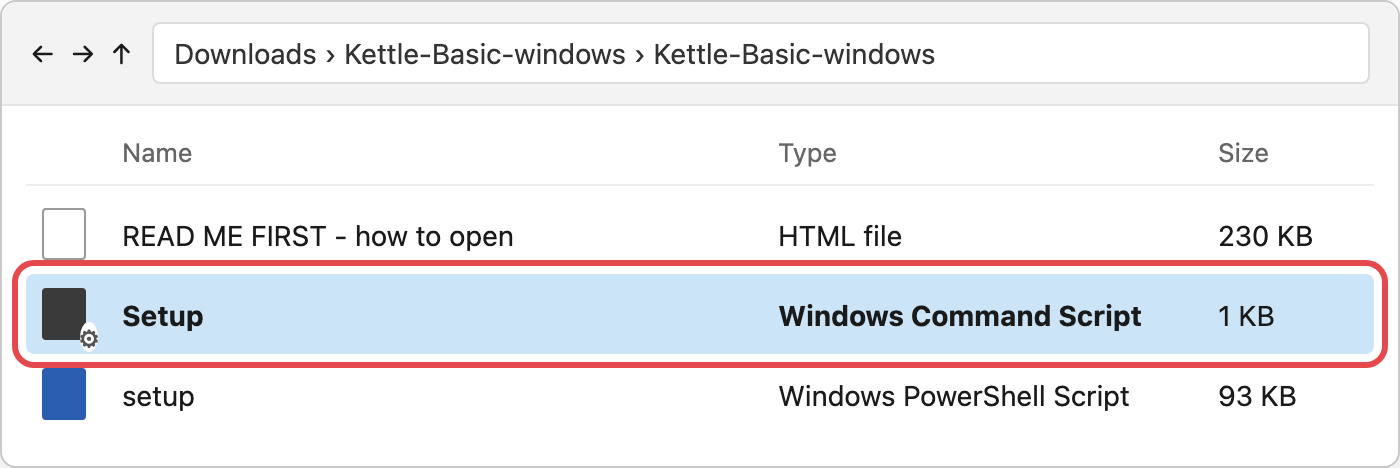
Double-click the Setup that says Windows Command Script. Can't see the Type column? Click View → Details at the top of the window.
- Important · get past the warning
Click "More info"
If a blue Windows protected your PC box appears, that's the expected warning. Click the small More info link. (Don't click Don't run.)
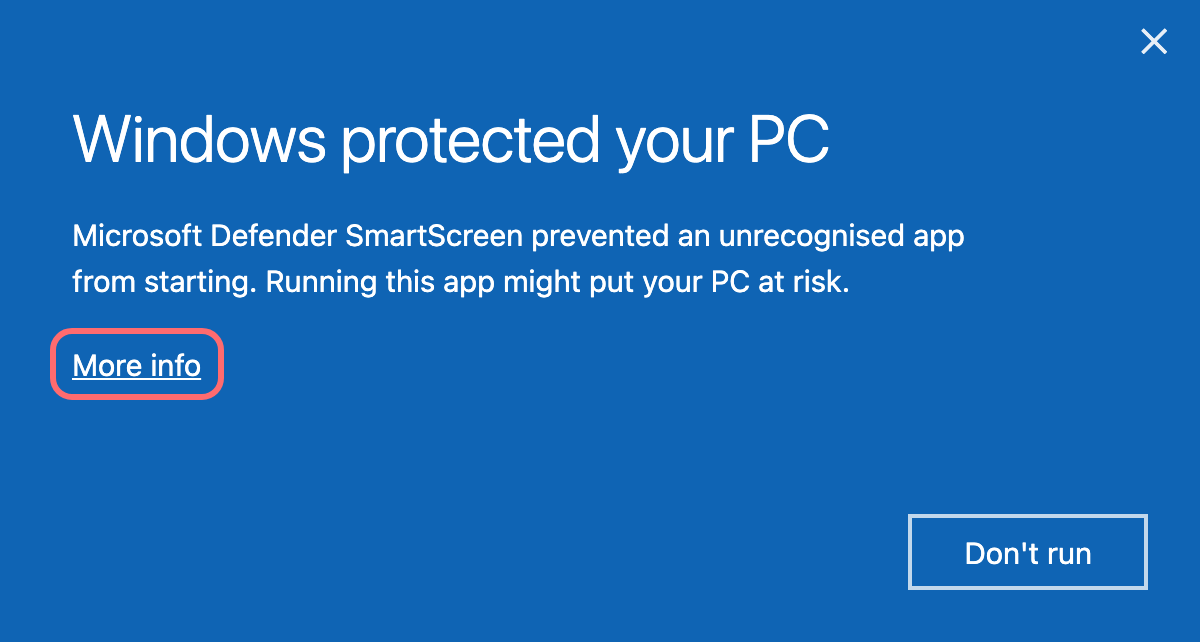
Click More info. - Important · start it
Click "Run anyway"
The box now shows Publisher: Unknown publisher and a Run anyway button. Click it. Kettle starts.
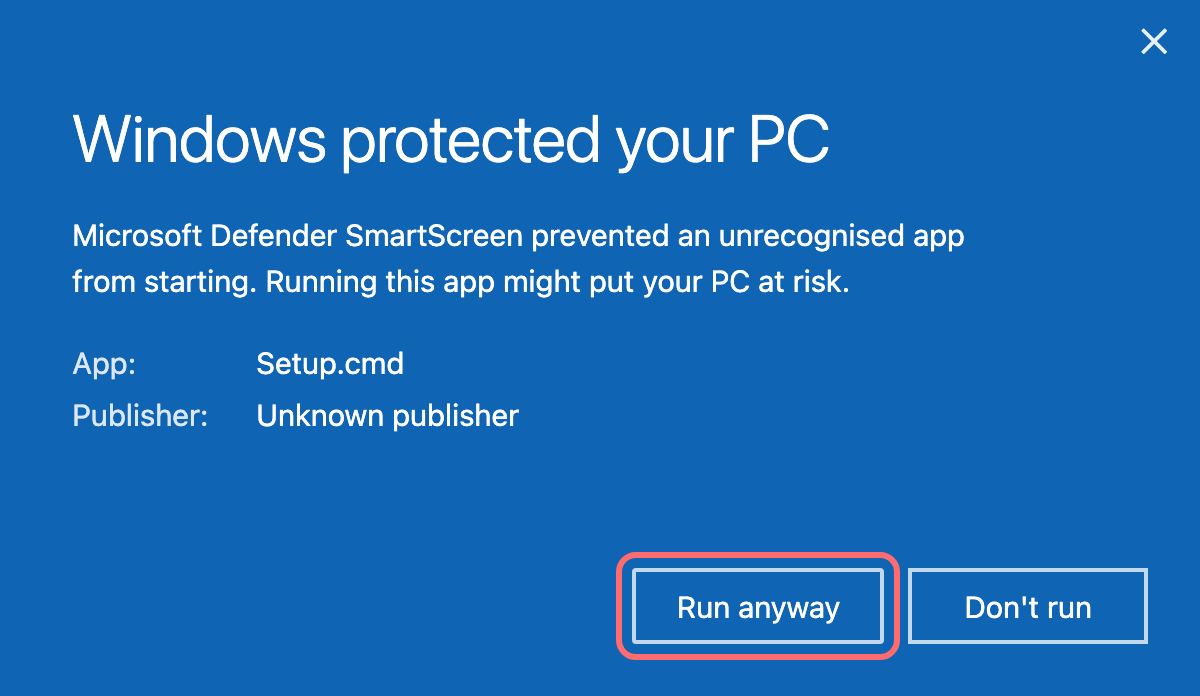
Click Run anyway. If another box asks "Do you want to run this file?", click Run.
Follow Kettle's screens
Kettle's own windows take you from here and say what each step will do before it does it. A black PowerShell window shows progress: leave it open until Kettle says it's done.
The Windows pictures are recreated for this guide, so yours may look slightly different, but the button names are the same.
Still stuck? See Help. If Kettle won't run on your computer, reply to your receipt email within 30 days and you'll get your money back.